WELCOME TO TOP-CLASS E-LOGISTICS
WITH A FAST SHOPIFY LINK
Connect your Shopify store with Internel E-Fulfillment services with few clicks!
TO THE SHOPIFY APP
Connect your Shopify store with Internel E-Fulfillment services with few clicks!
TO THE SHOPIFY APPDrive your sales growth higher, with our top-class e‑fulfilment services.







Today’s e‑commerce customers demand fast, cheap, reliable deliveries.
The better your logistics, the happier your customer base, and the faster your growth.
If you’re tired of spending sales and marketing time grappling with complex logistical challenges, try a better way.
Internel’s total fulfilment solution frees you from the burdens of shipping & returns, while you focus on generating sales with turbocharged results:



Automatically send your orders to our fulfillment centre for us to pick, pack and ship
Change your product fulfiller and send the product data to Internel with one click
Be in control of your stocks at Internel 24/24 with full data visibility and real-time inventory status
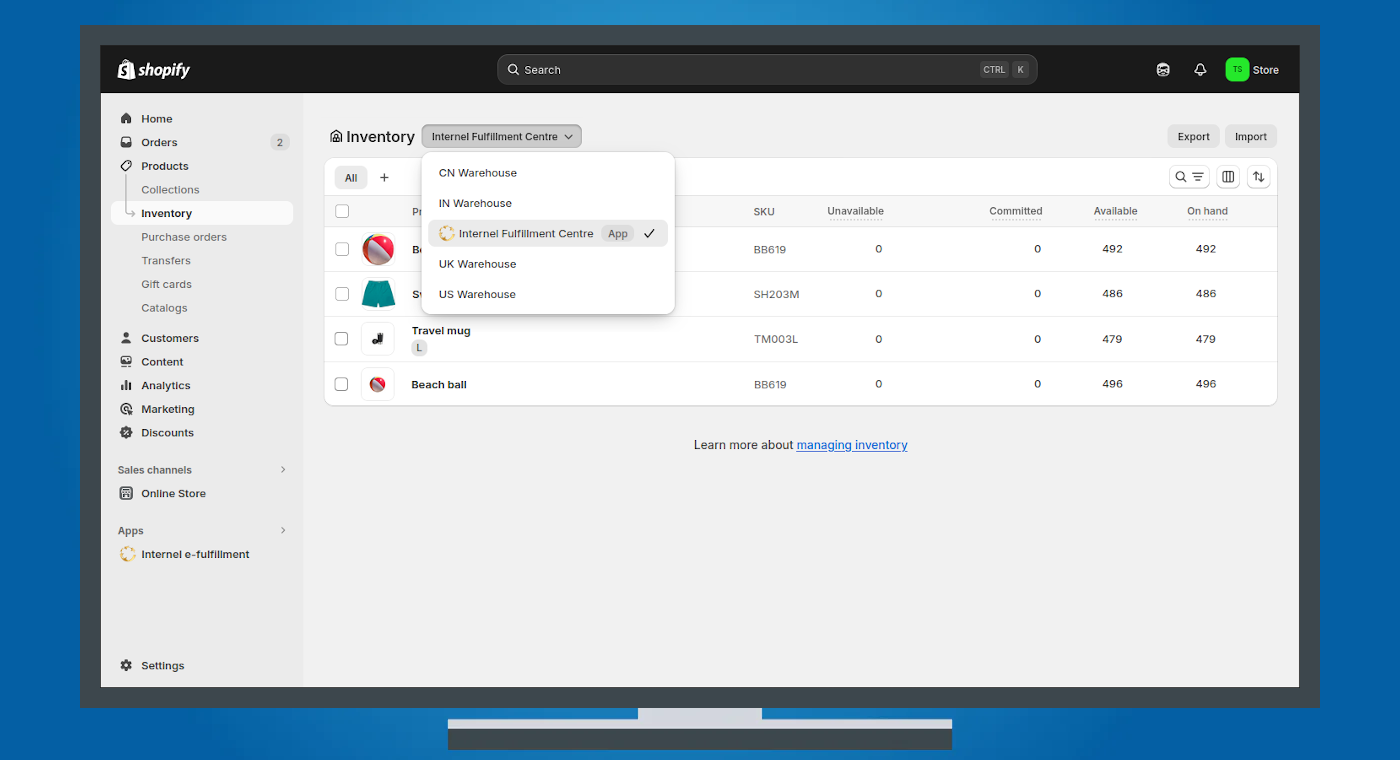
Welcome to Internel’s e-fulfilment services. You have successfully installed our application, and a new fulfilment location should now be visible in your Shopify admin panel. This location, named “Internel Fulfillment Centre,” represents our e-commerce distribution centre. All products intended for physical storage must be assigned to this location for future order fulfilment.
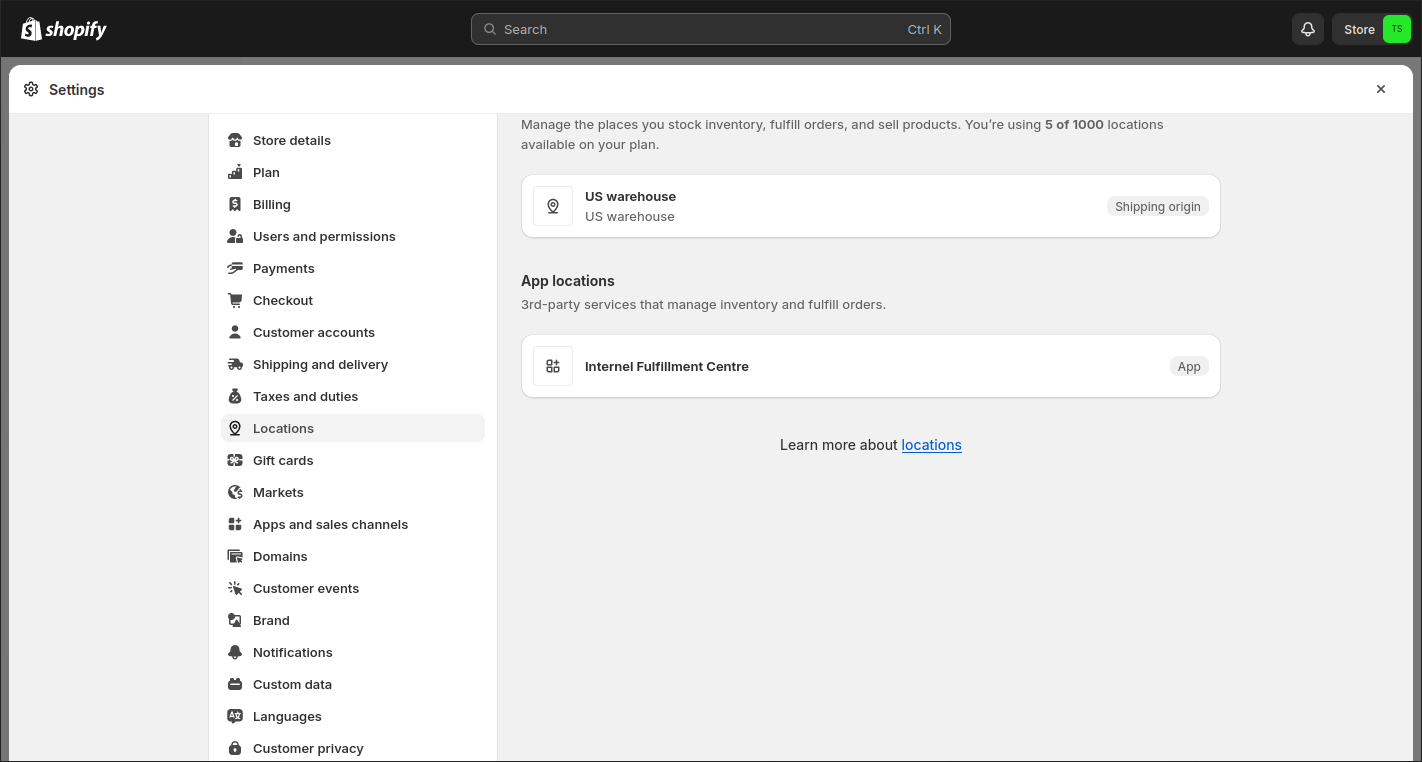
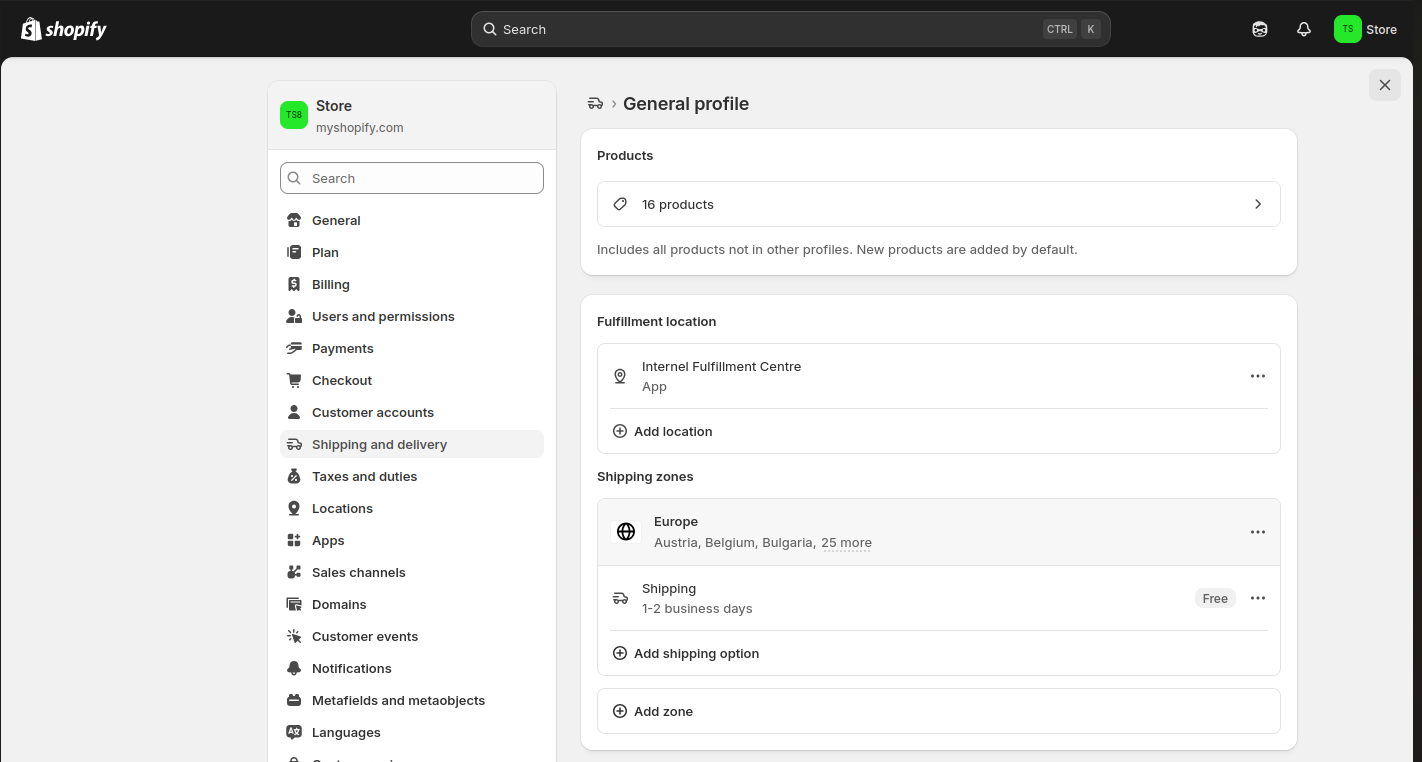
Based on our agreement, please set up your “Shipping zones” and assign them to the Internel Fulfillment Centre location. Here, you can freely define your shipping options according to your preferences.
Take this opportunity to tailor your shipping rates, delivery times, and methods to best fit your customers’ needs. Properly configuring your shipping zones ensures that orders are processed efficiently and that your customers receive accurate shipping information at checkout.
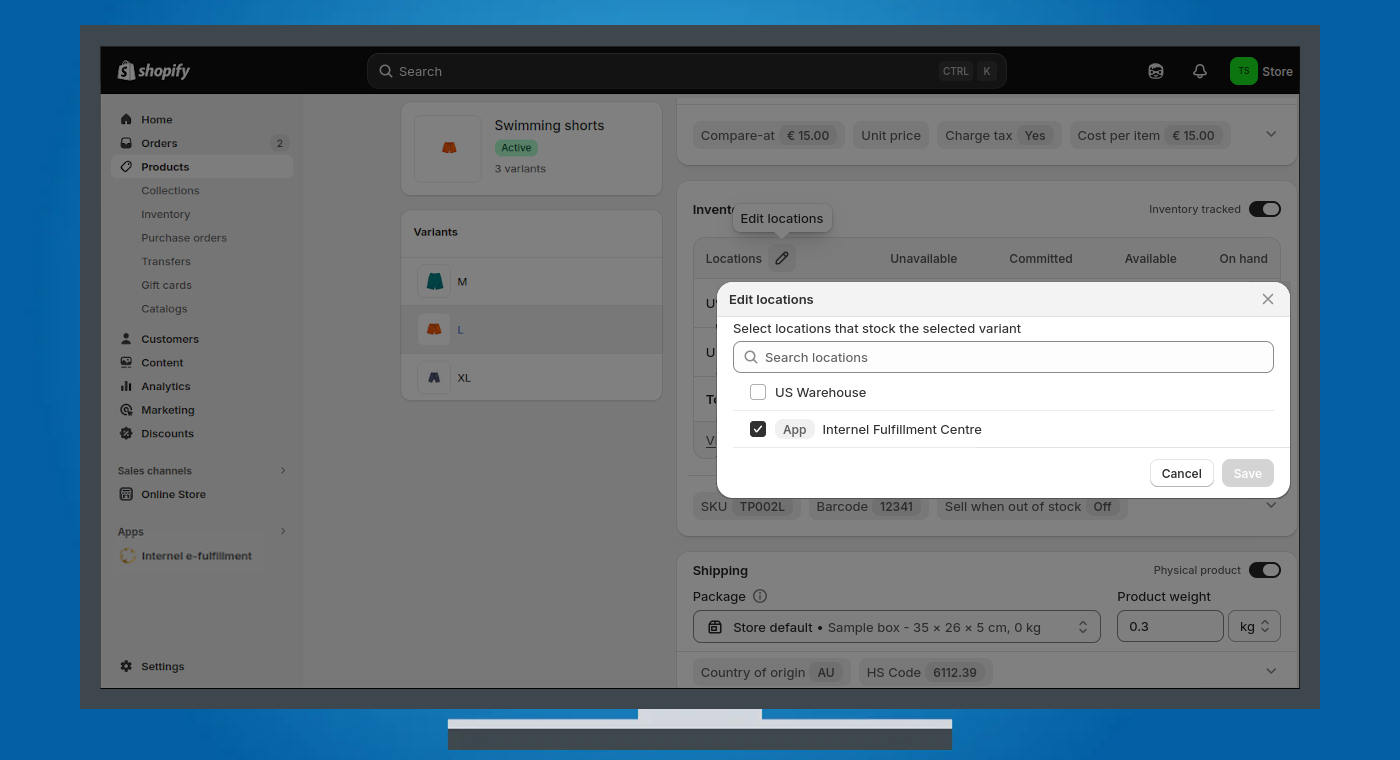
To transfer products to our fulfilment centre, navigate to the product edit section for the items managed by our service and enable “Inventory location” → “Internel Fulfillment Centre.” Stock levels for this location are automatically maintained by the system and cannot be updated manually.
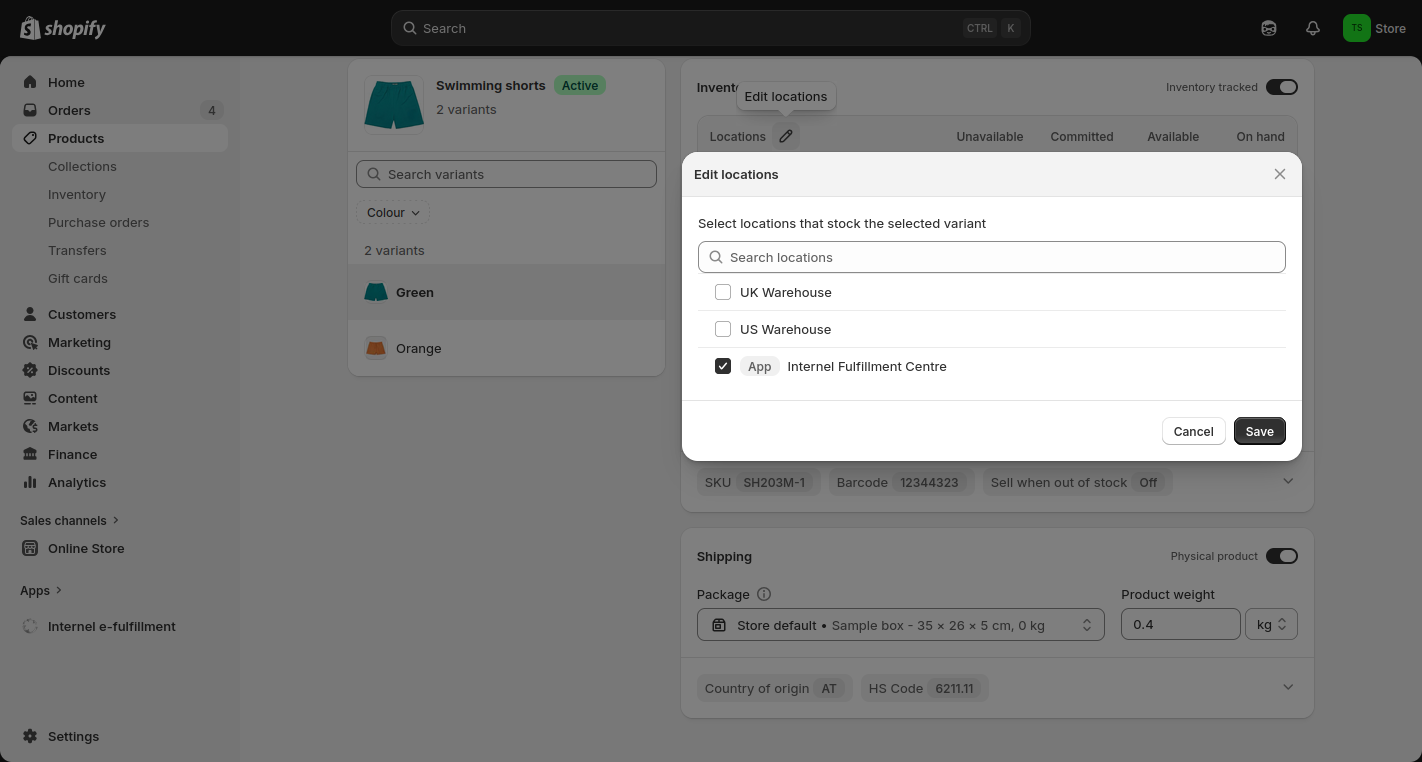
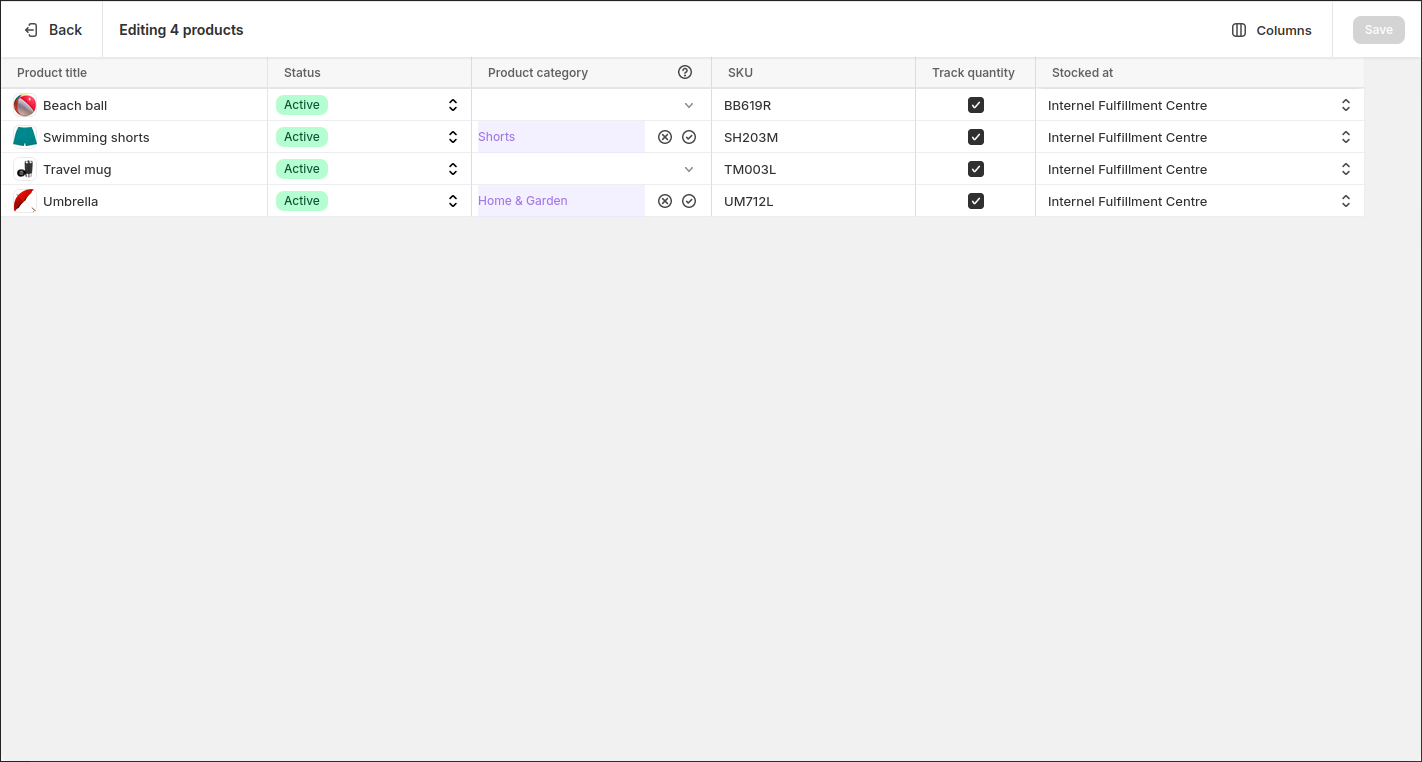
Shopify requires a unique SKU (Stock Keeping Unit) for each product to enable transfer to an e-fulfilment service. For accurate and reliable inventory synchronization, ensure that every product and variant (e.g., pack of 3, colour green, size XL, etc.) has a unique SKU and a unique barcode, as assigned and managed by our system.
Once your products have been assigned to the Internel Fulfillment Centre and physically received and stored by us, you can begin processing orders and growing your sales.
Within your Shopify settings, you can choose whether orders are fulfilled automatically or manually. Select “Automatically fulfill the order’s line items” to let Shopify release orders automatically, or “Don’t fulfill any of the order’s line items automatically” if you prefer to release orders manually.
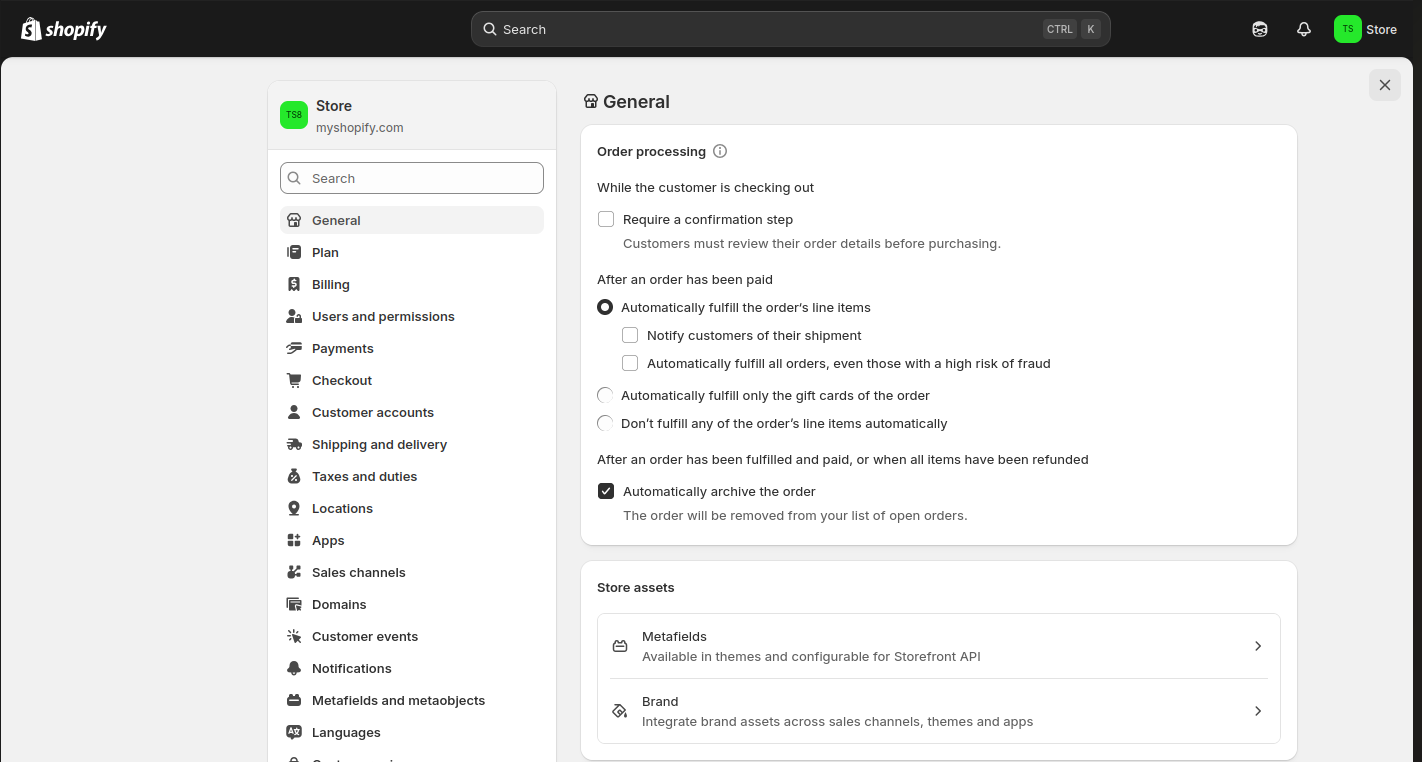
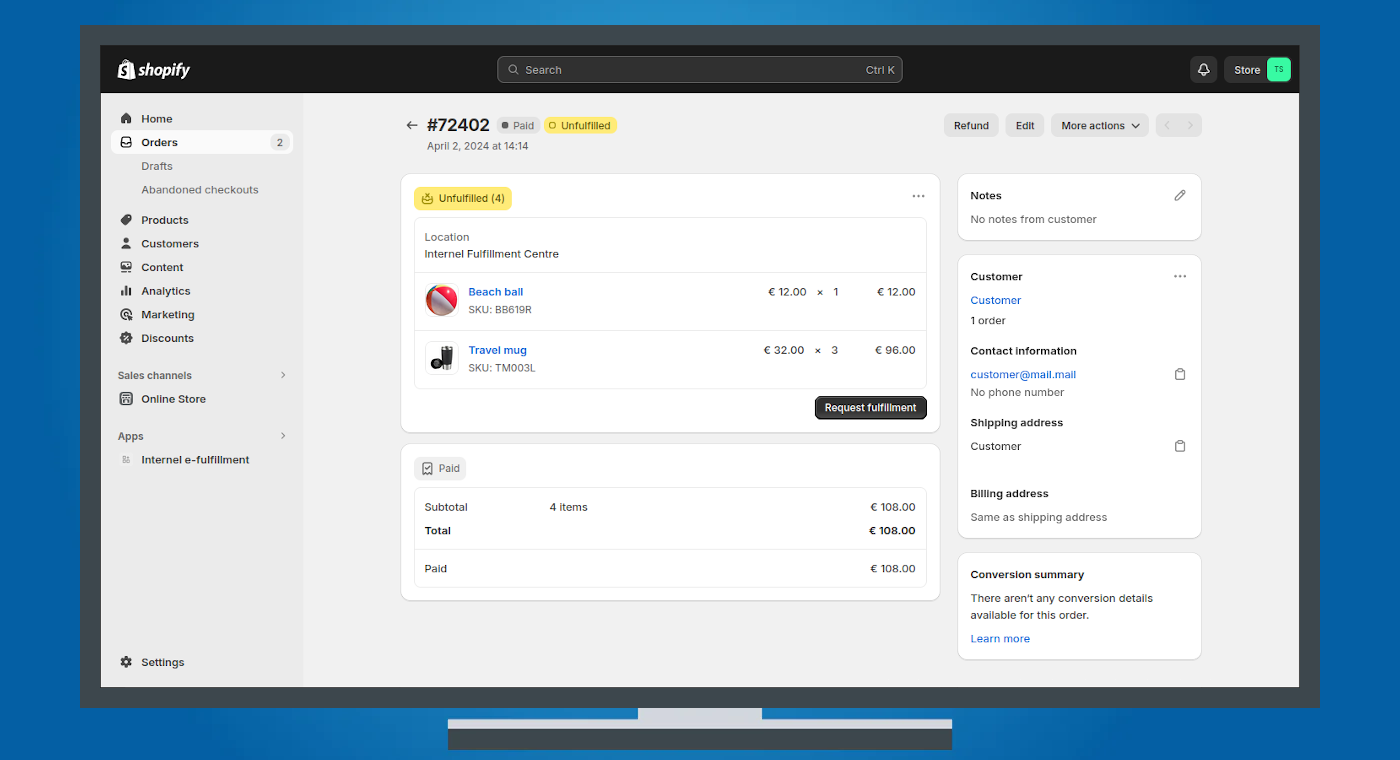
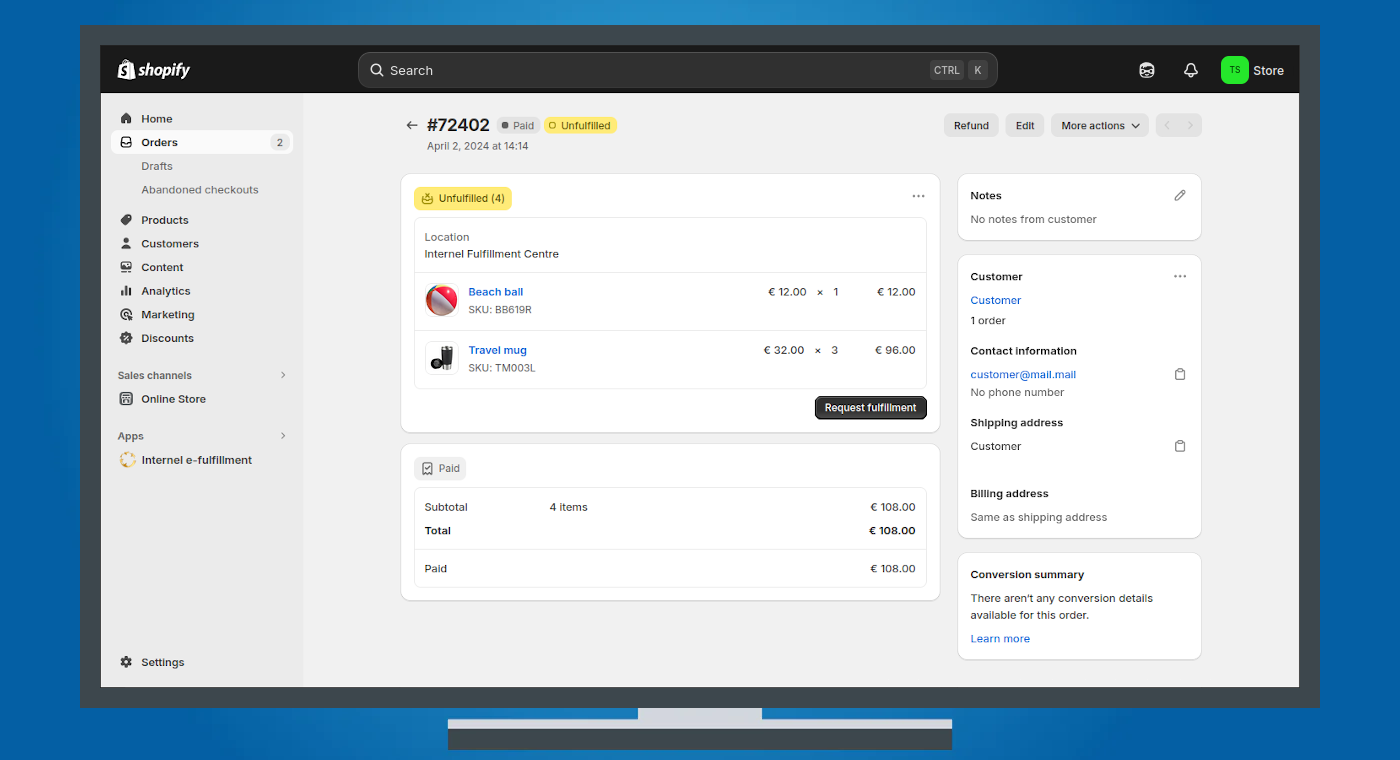
When you choose to release fulfillments manually, the standard “Mark as fulfilled” button on the order page will be replaced with a “Request fulfillment” button. Once clicked, the order is sent immediately to our e-commerce distribution centre. From that point, the process is the same as with automatic fulfillment: the order will be picked, packed, and shipped to ensure a smooth experience for both you and your customer.
Please note that once a fulfillment request is sent, order data cannot be updated from our system. In case you need to change data at a later stage, i.e. changing a shipping address or even cancel the order in Shopify – we’re already working on it to ship an impeccable parcel to your client. Therefore, such orders will need to be immediately advised to our distribution team in conventional ways (phone, e‑mail) as to accommodate last minute changes, if possible.
When “Inventory tracked” is enabled, Shopify automatically updates product stock levels based on values from our app, ensuring that your Shopify inventory corresponds with the quantities held in our fulfilment centre. Updates occur hourly.
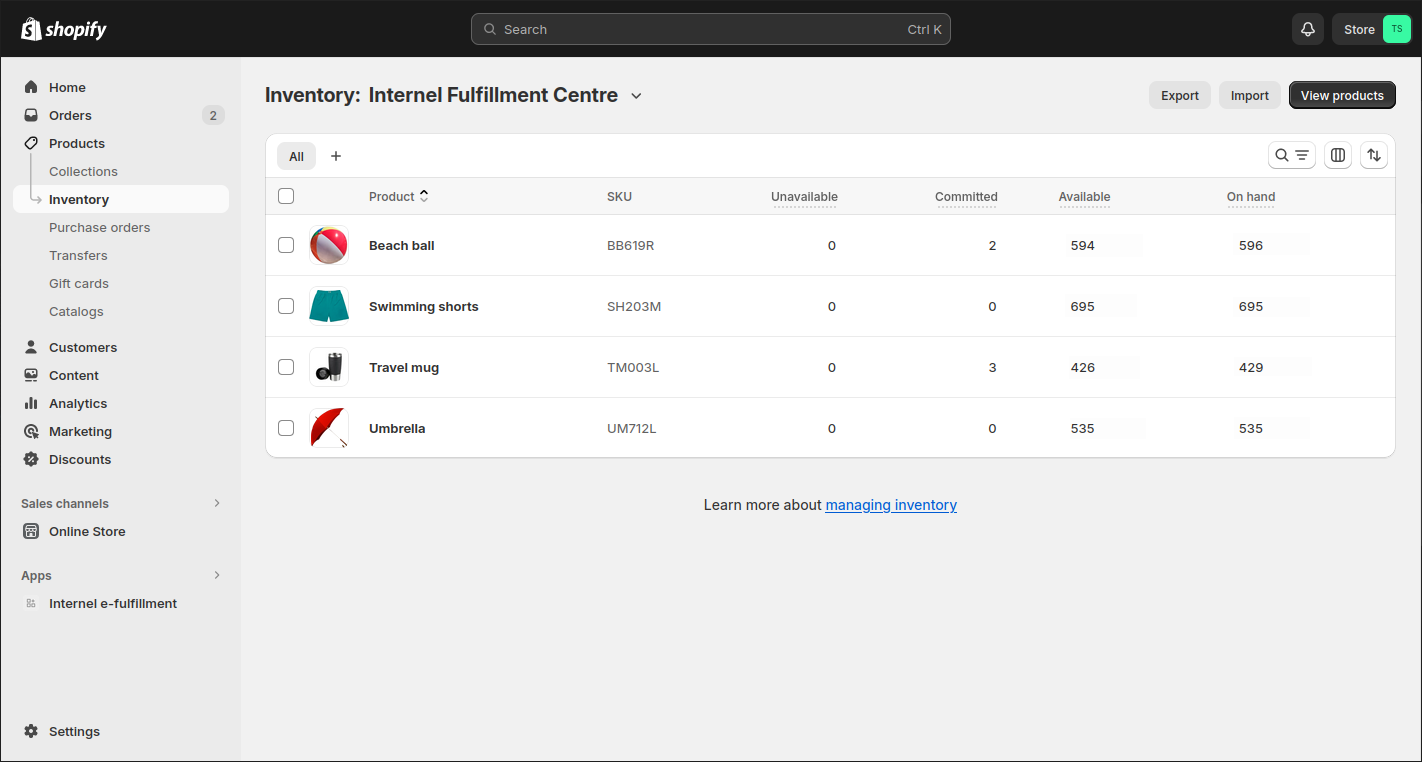
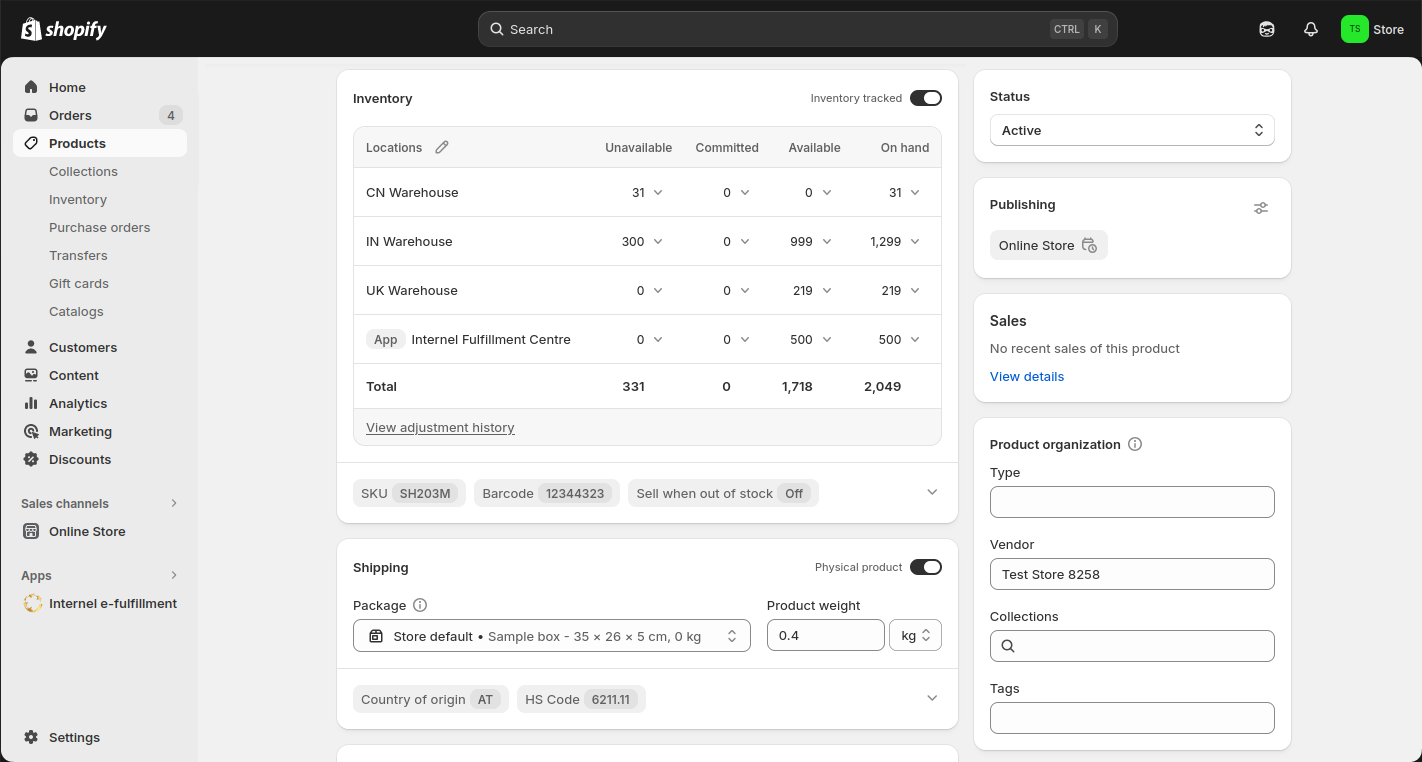
To enable this, open the bulk editor for the selected products and check the “Track quantity” box, or activate the “Inventory tracked” option within the individual product edit section. As mentioned previously, it is essential that every product variant has a unique SKU/item number, as Shopify uses SKUs to identify items when retrieving stock levels from our fulfilment centre.
IMPORTANT: Disabling this option may lead to overselling, as Shopify will no longer limit sales based on actual stock.
The full order overview is visible in the admin panel of your Shopify order status page. So once you send us your sales orders, the following is going to happen: